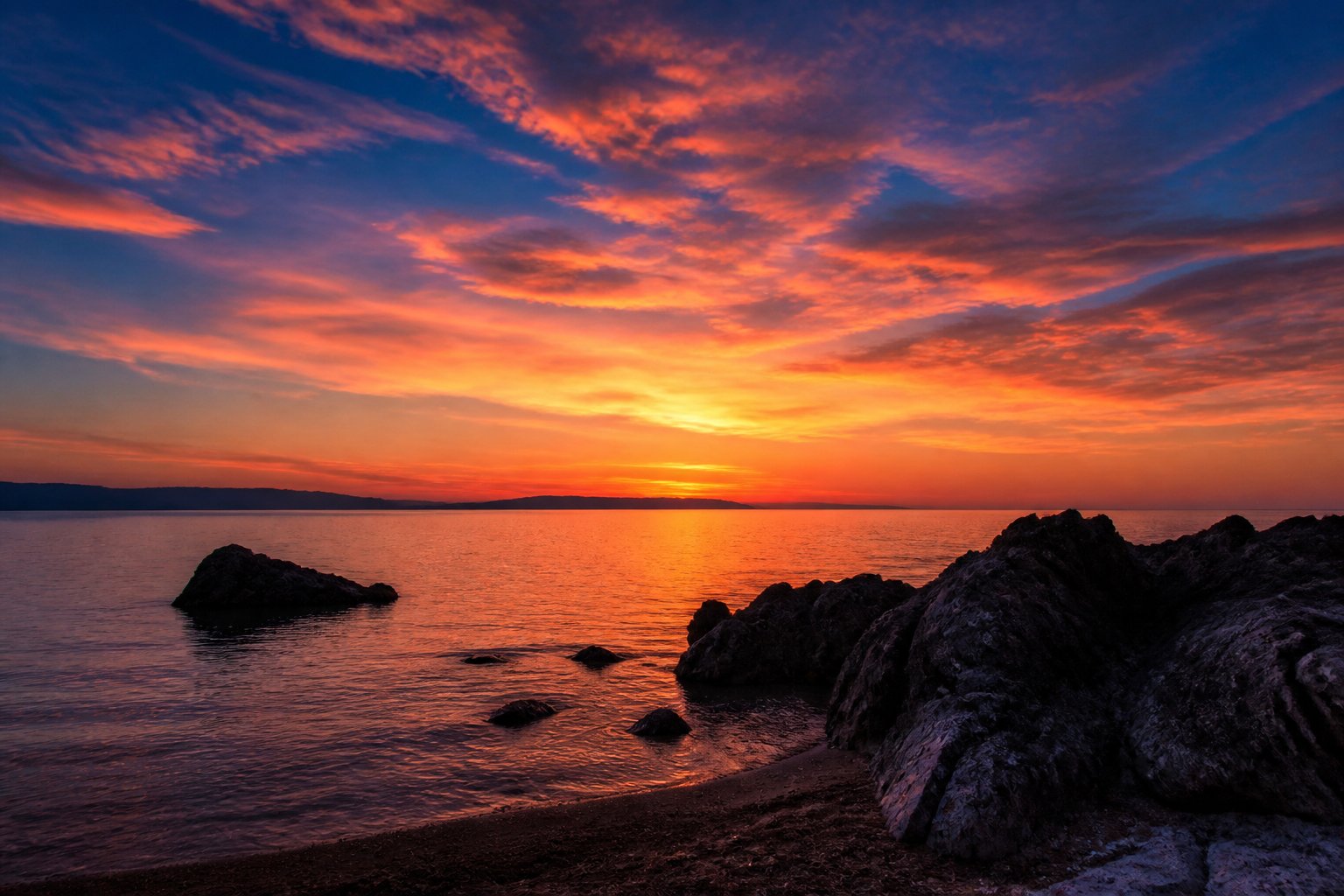
A sunset photo straight out of the camera rarely matches what you felt while standing there. The sky looked deeper, the colors warmer, the contrast stronger. Editing is how you close that gap. You do not need expensive software or advanced skills, just a repeatable order of small adjustments that brings the image back to life without making it look artificial.
This workflow uses sliders found in nearly every photo editor, from free phone apps to desktop programs. The names may differ slightly, but the controls do the same jobs.
Fix Exposure and Contrast First
Start with the overall brightness. Sunset shots are often a touch dark because you exposed for the bright sky, so nudge exposure up only until the foreground reads clearly. Then add a little contrast to separate the dark land from the glowing sky. Go gently here; heavy contrast crushes the soft gradients that make twilight beautiful.
Before anything else, make sure your horizon is level. A tilted sea or skyline is distracting and is the easiest thing to correct with the straighten or rotate tool.
Recover Highlights and Open the Shadows
Sunsets push both ends of the tonal range. The area around the sun can blow out to white, while the foreground falls into black. Two sliders fix most of this.
- Pull the highlights down to bring back color and texture in the brightest clouds.
- Lift the shadows a little to reveal detail in the dark areas, without flattening the image completely.
- Leave some true black in the scene; a photo with no deep shadows looks washed out and hazy.
Set the White Balance for Mood
White balance controls how warm or cool the photo feels, and it is the heart of a sunset edit. Auto white balance often tries to neutralize the warm tones, which defeats the purpose. Slide the temperature toward the warm side to restore the golden and orange cast you actually saw.
If the warmth tips into an unnatural pink or the sky looks too magenta, balance it with the tint slider. The aim is a warm scene that still feels believable, not a uniform orange filter laid over everything.
Adjust Color With Restraint
This is where most edits go wrong. Dragging the main saturation slider to the top makes reds bleed and skin tones turn radioactive. Instead, raise vibrance, which boosts the more muted colors while protecting the ones already strong. If your editor has individual color controls, you can deepen just the oranges and reds in the sky while leaving blues and greens alone.
- Prefer vibrance over global saturation for a natural result.
- Target specific colors rather than boosting everything at once.
- Step away for a minute, then look again; tired eyes push colors too far.
Use a Graduated Adjustment for the Sky
A graduated filter applies an edit across part of the frame and fades it out, which is perfect for skies. Drag one down from the top and slightly darken or warm just the upper portion. This deepens the sky and draws the eye upward without touching the foreground. You can add a second graduated adjustment from the bottom to gently brighten a dark beach or field.
Finish With Cropping and a Final Look
Now refine the composition. Crop to strengthen the framing, placing the horizon on a third rather than dead center, and remove any distracting clutter at the edges. A small amount of sharpening adds crispness, but keep it subtle, especially on phone photos where it quickly looks gritty.
Before you export, compare the edited version against the original. If the change feels jarring rather than improved, ease back on every slider by a fraction. The best sunset edits look like the scene at its best, not like a heavily processed graphic.
Conclusion
A strong sunset edit follows a simple path: correct exposure and contrast, recover the extremes of light, warm the white balance, lift the color with care, and shape the sky with a graduated adjustment. Work in that order, keep each move modest, and check your result against the untouched file. With practice the whole process takes only a couple of minutes and turns flat captures into images that finally match the moment.